Send LiveChat Leads to HubSpot

LiveChat to HubSpot Integration Guide

With Syncspace, you can automatically send new entries from your LiveChat directly to your HubSpot CRM (Contacts) no coding or technical skills required. Your chat data flows seamlessly from one platform to the other.

Just follow the steps in this guide, and your LiveChat submissions will start showing up in SendGrid automatically.
It’s fast, simple, and saves you time.

Prerequisites:
  • You have access to both a LiveChat account and a HubSpot account.
  • You are logged in to both platforms.
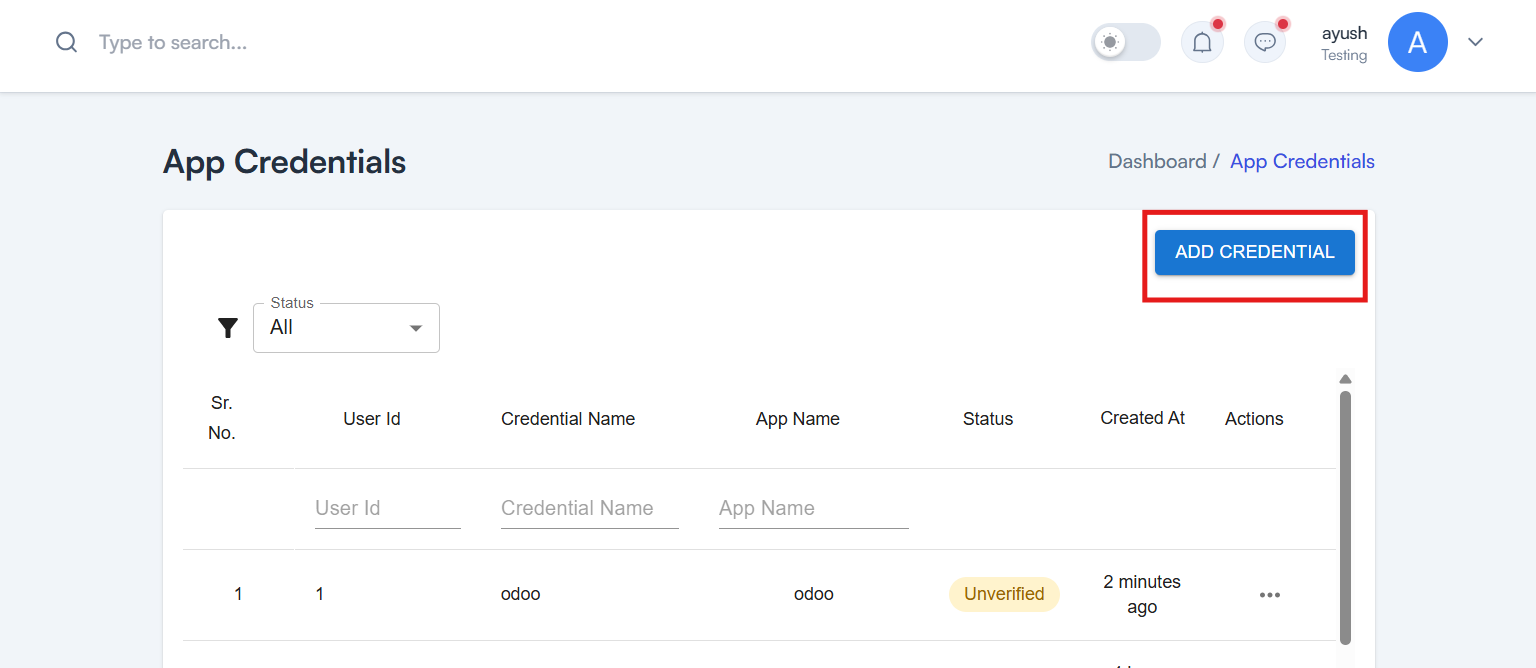
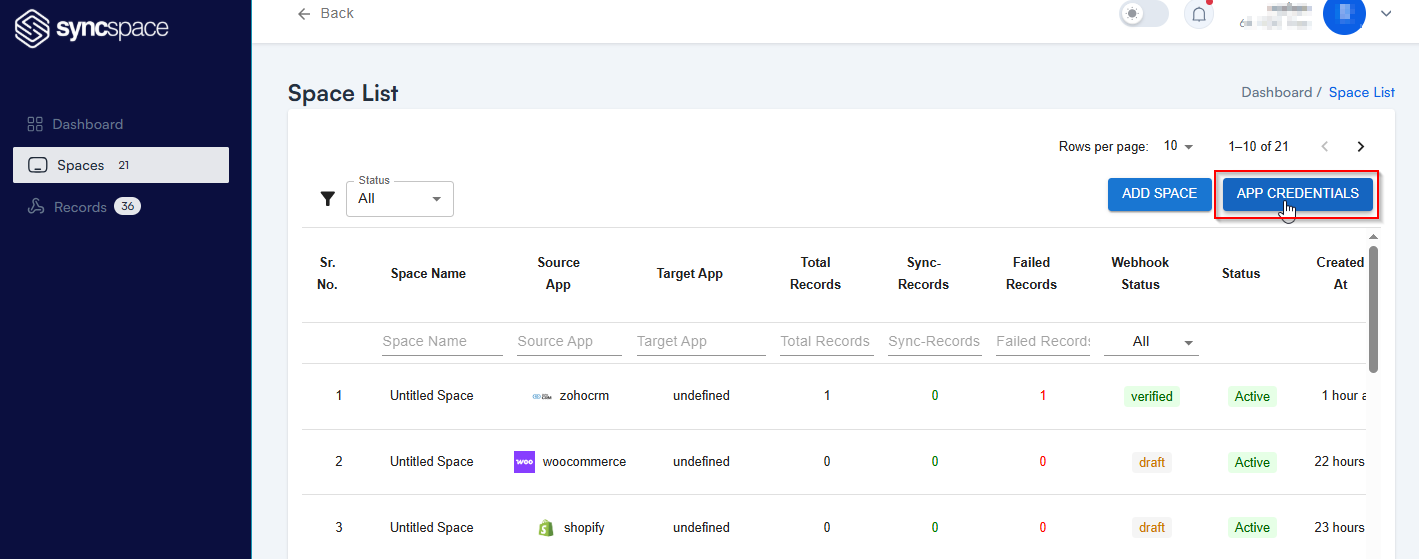
Step 1 Click on App Credentials
Step 2 Create a New Credential
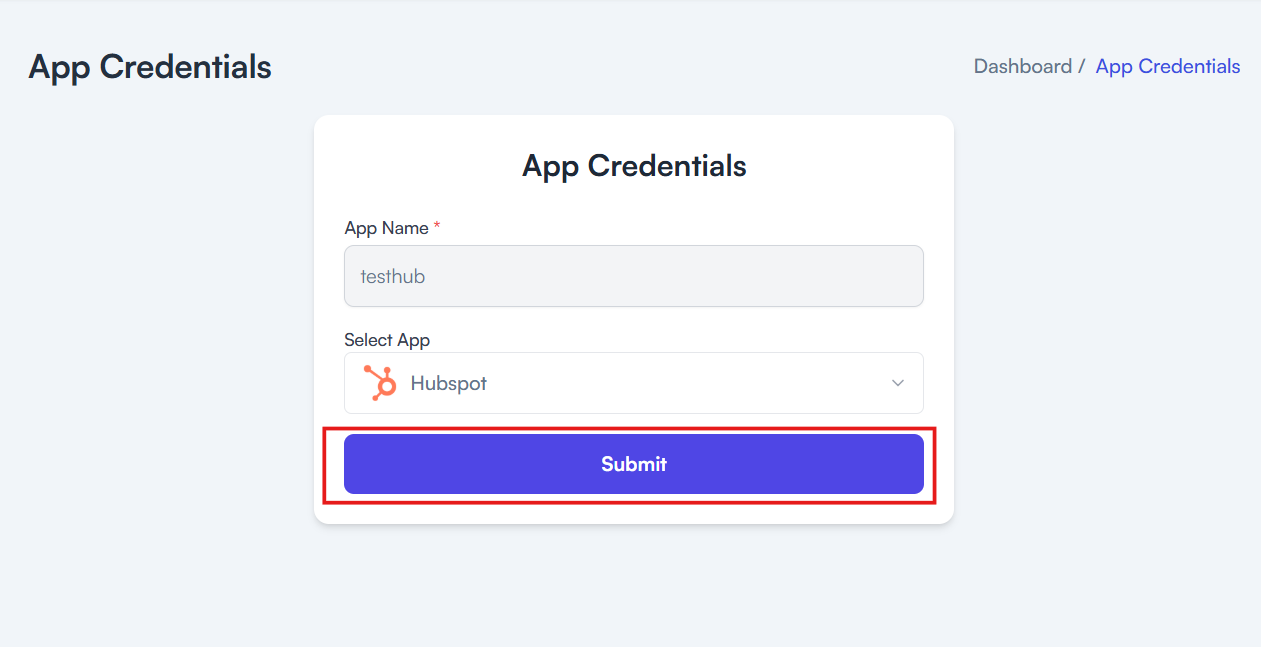
Step 3 Configure App details
  • Add your App Name
  • Select HubSpot from the Dropdown
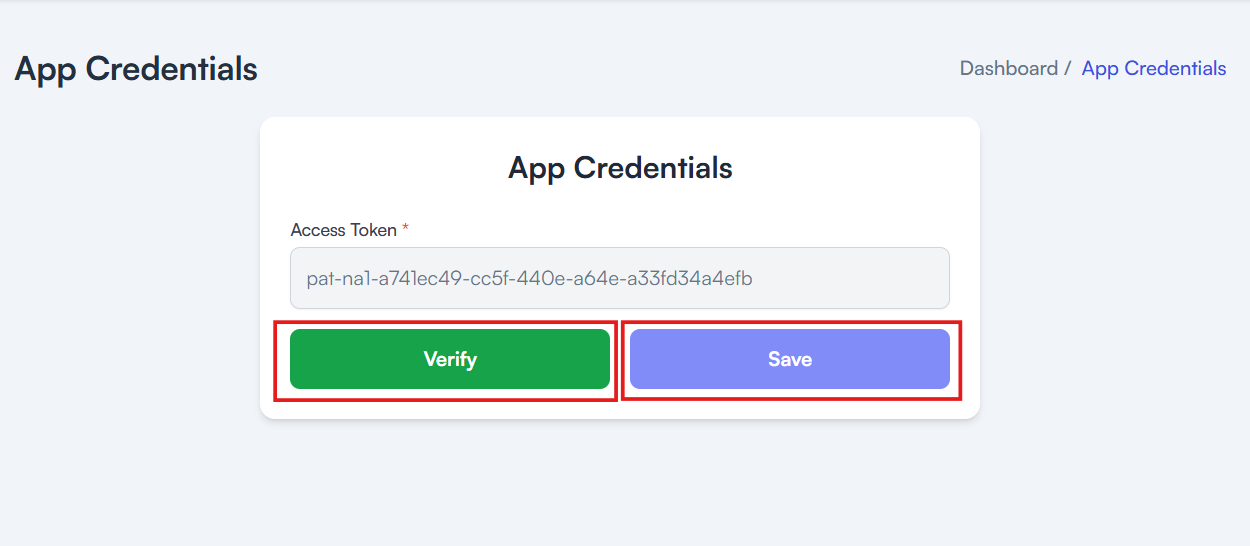
Step 4 Add your HubSpot Access Token and click Verify then save

Need help creating credentials? Click here for the guide.
If you’ve already done that, continue below to create the space.
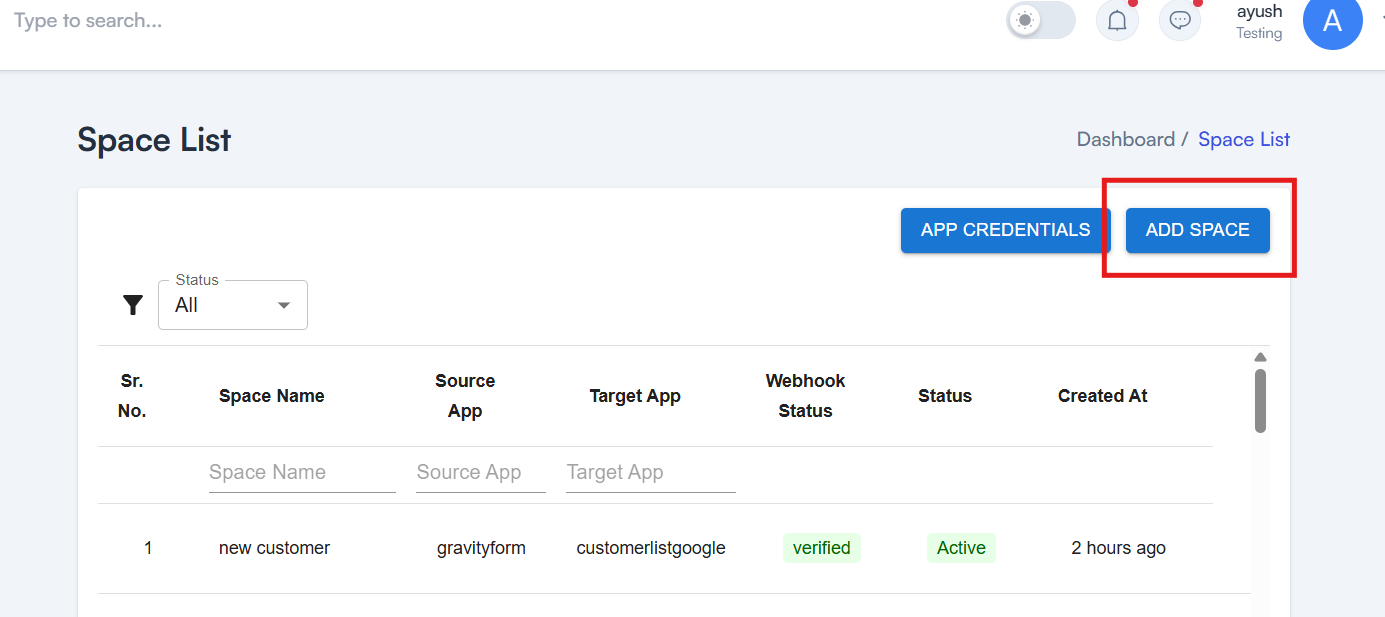
Step 5 Click on Add Space to create a new space
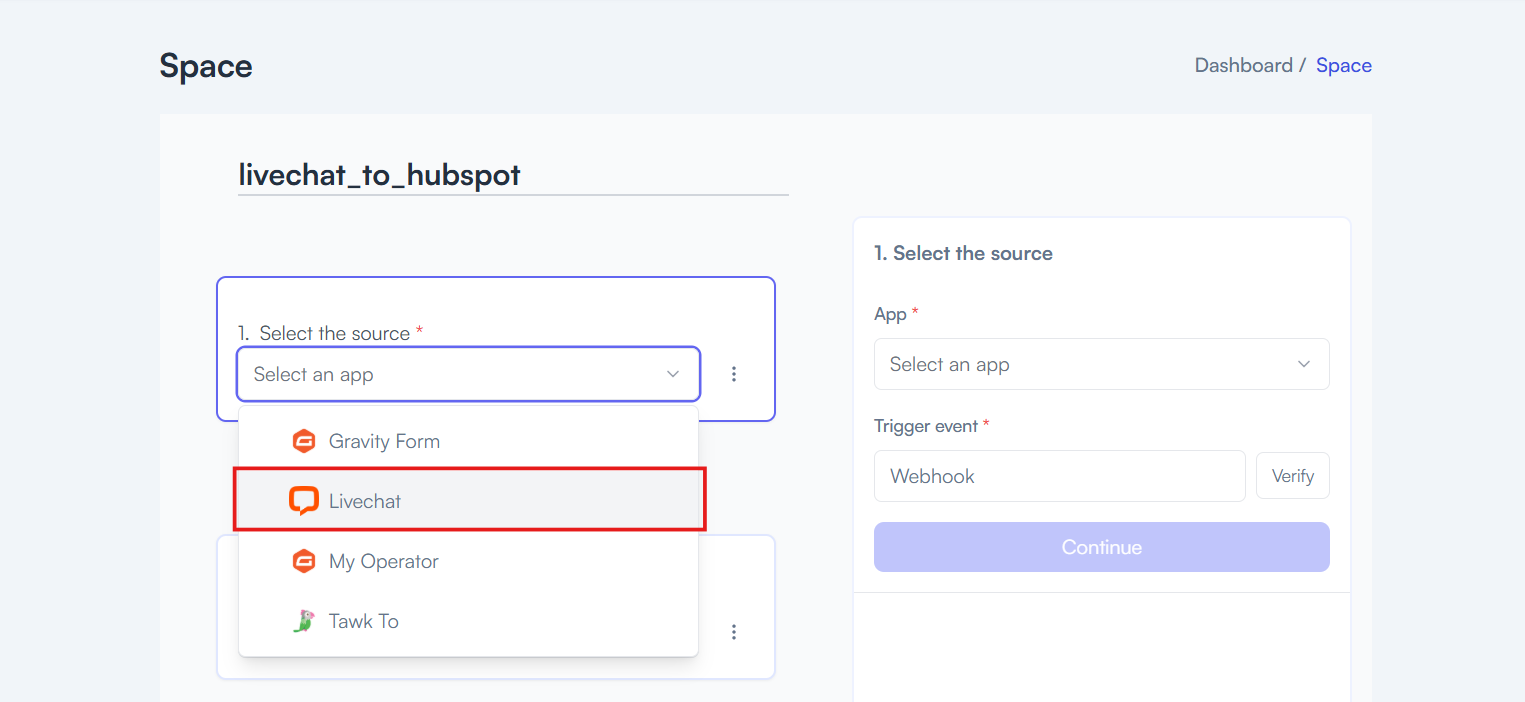
Step 6 Select your Source App from the dropdown
  • Choose LiveChat
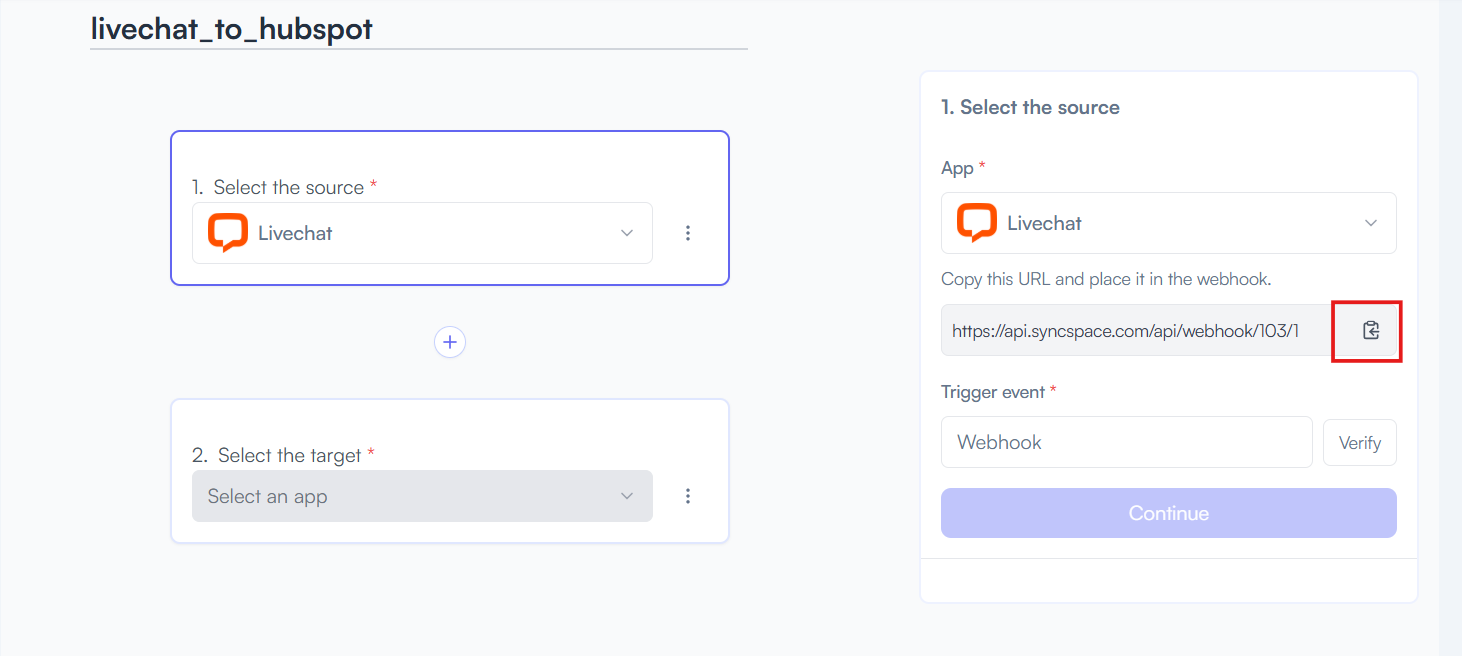
Step 7 Copy the Webhook URL generated for LiveChat
Step 8 Verify your Webhook URL in HubSpot

Need help creating credentials? Click here for the guide.
If you’ve already done that, continue below to create the space
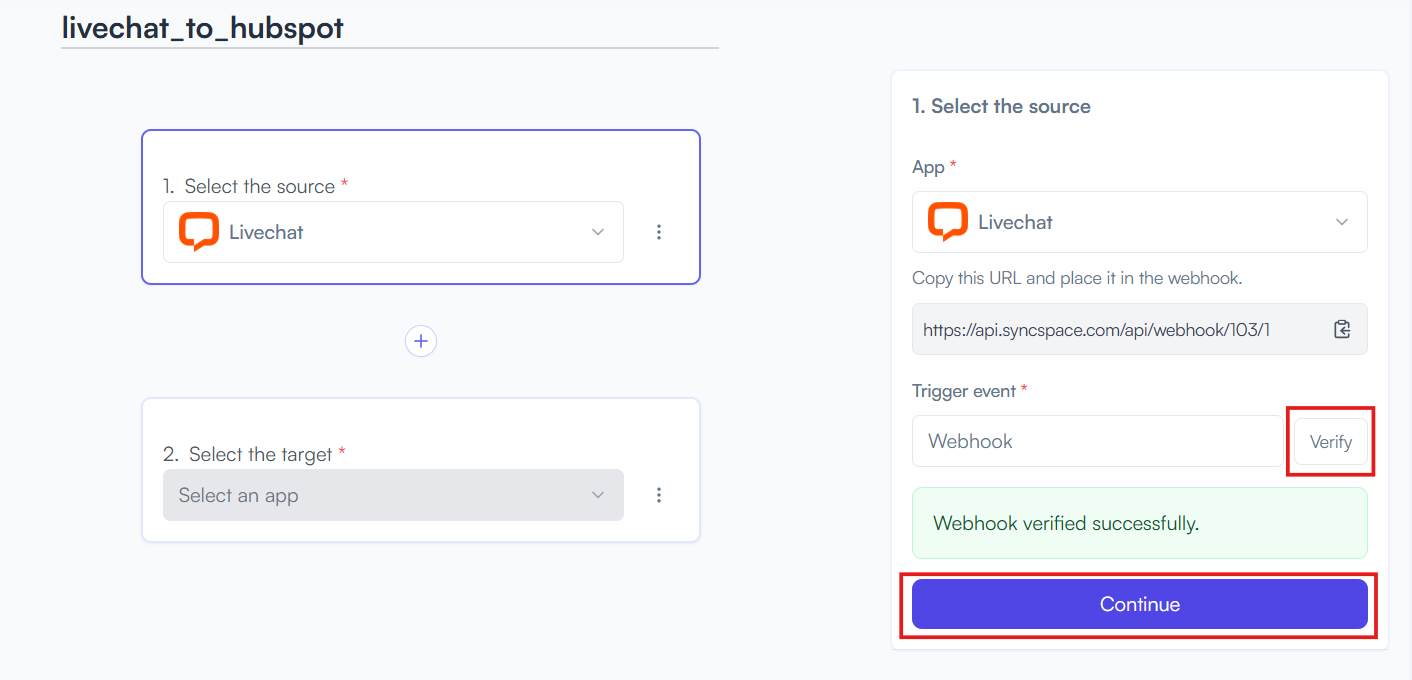
Step 9 Go back to the integration platform and click Verify Webhook, then click Continue
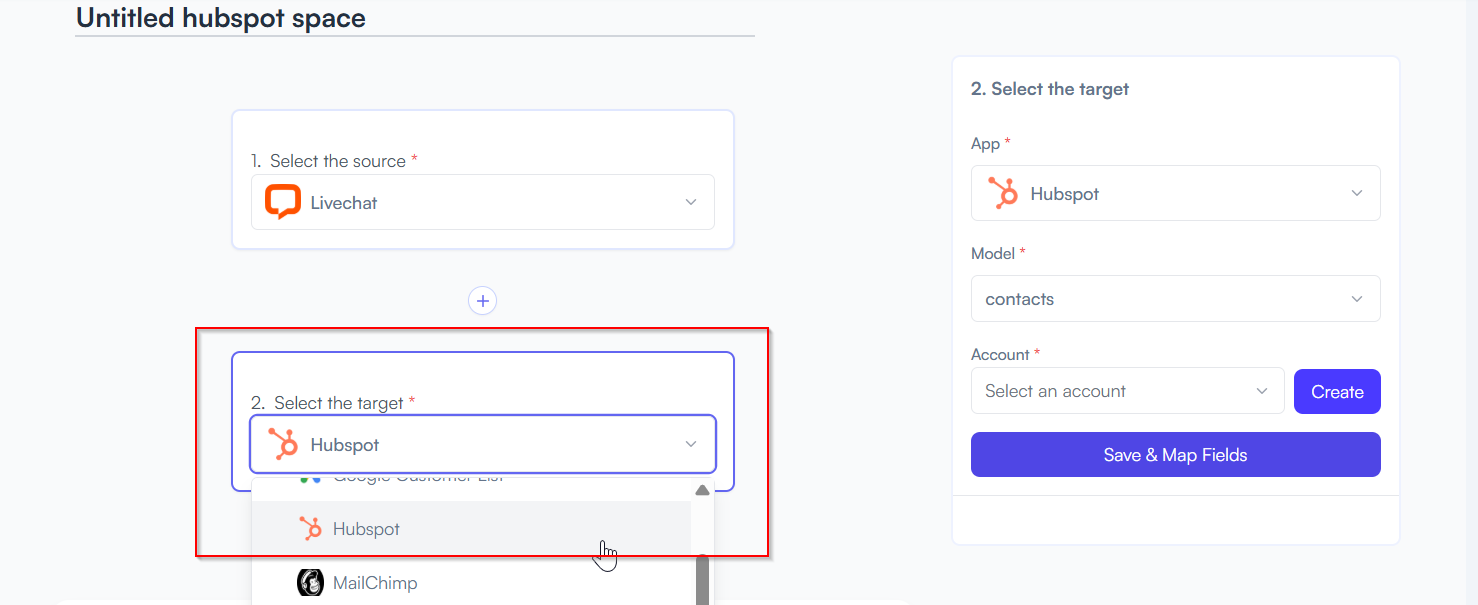
Step 10 Select your Target App from the dropdown
  • Choose Hubspot
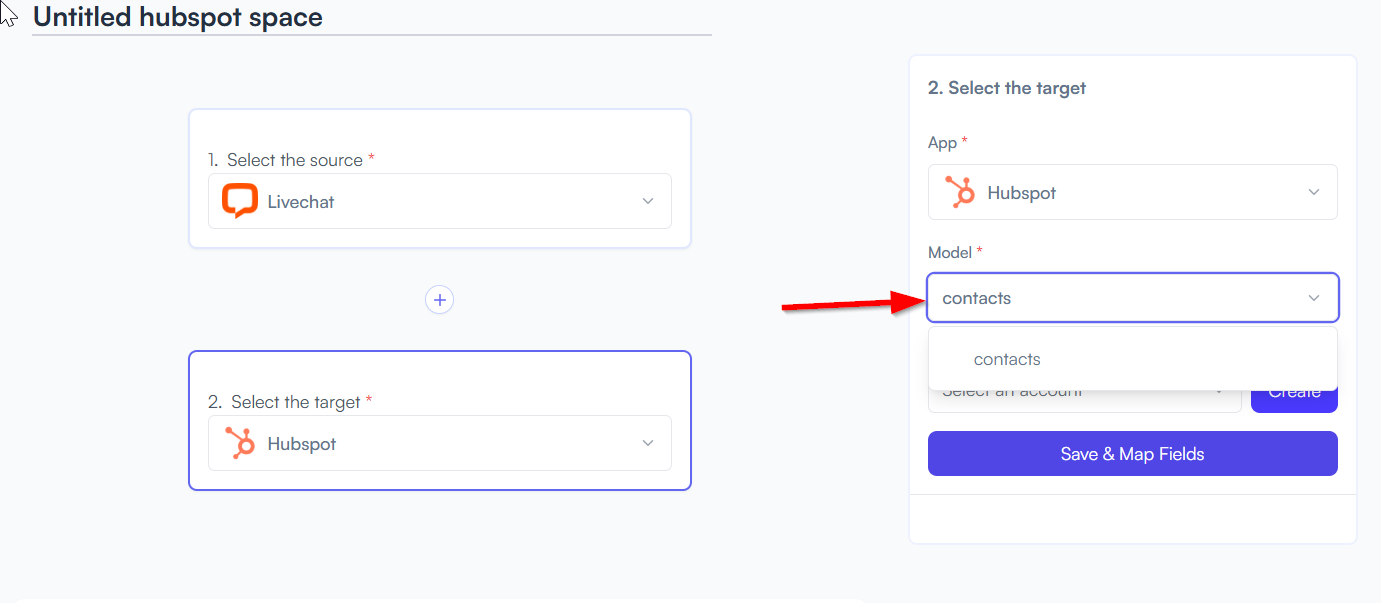
Step 11 Choose "Contacts" as the model for HubSpot.
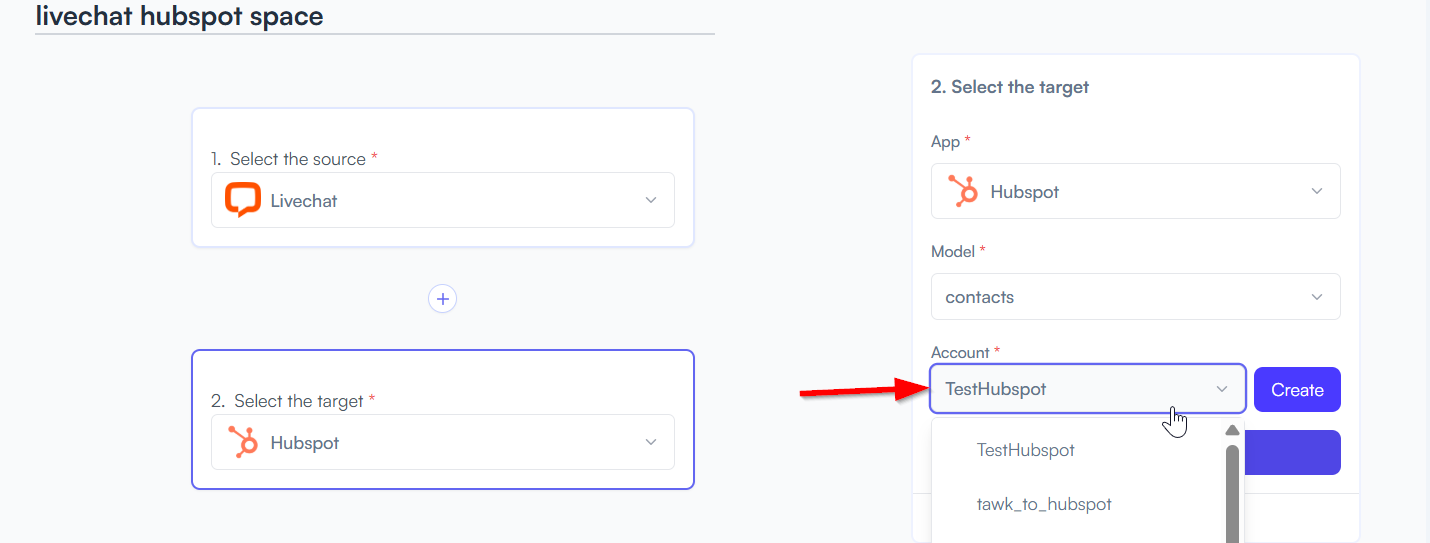
Step 12 Select the HubSpot account you created earlier while setting up your app credentials.
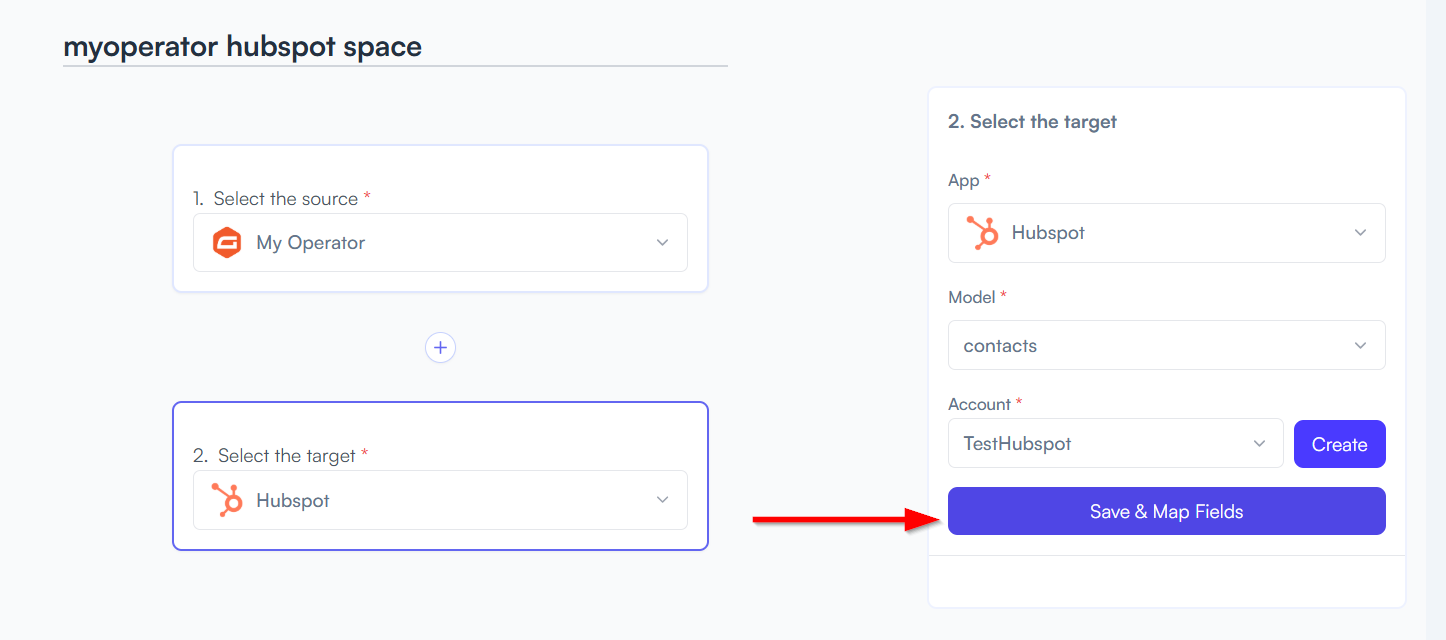
Step 13 Click on the "Save and Map Fields" button
Step 14 Match LiveChat fields to HubSpot fields

Example: Name → Full Name, Email → Contact Email, Message → Notes
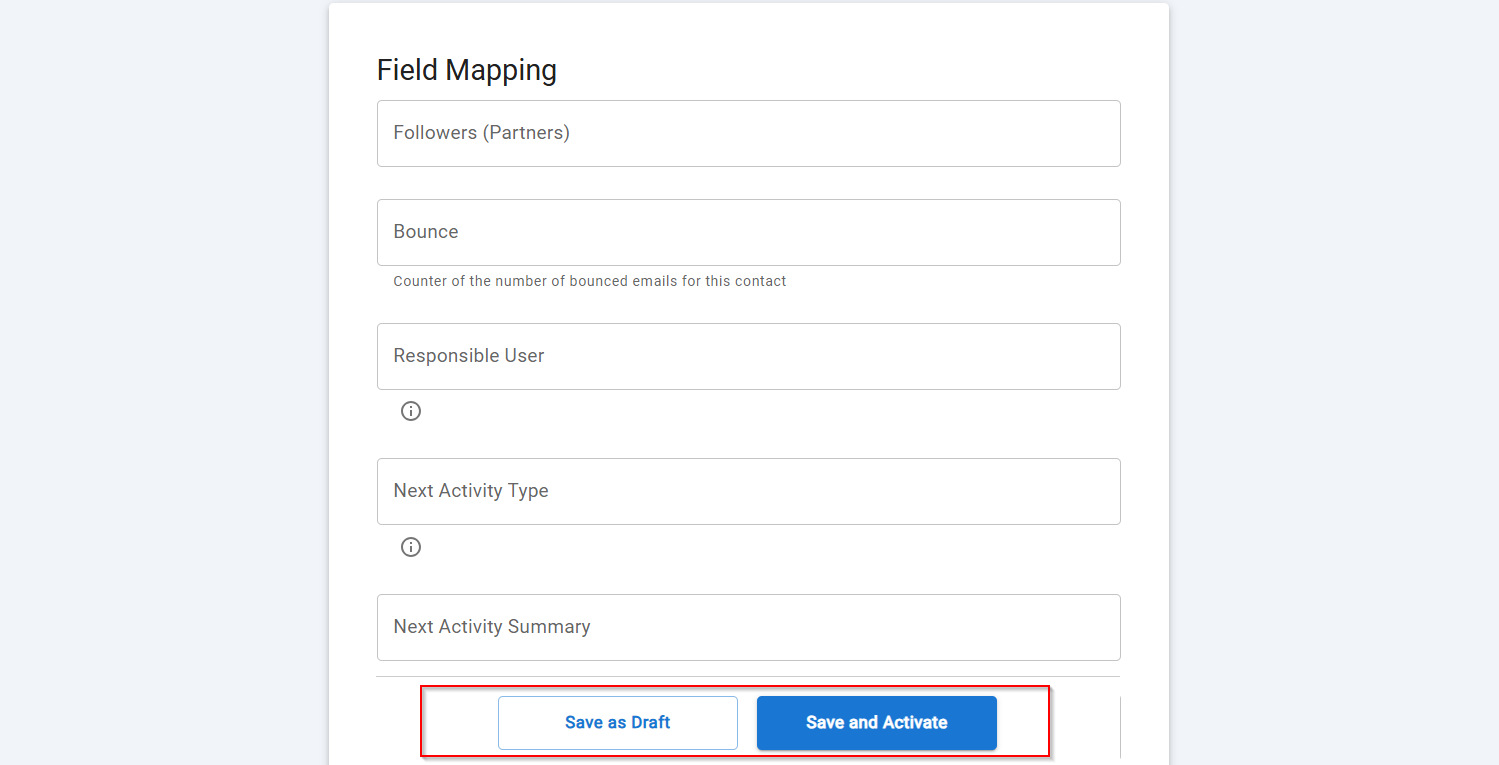
Step 15 Choose how you want to save your space

You will see two buttons: Save as Draft and Save and Activate.

  • Click Save and Activate, your space will be saved and activated automatically.

  • Click Save as Draft, This will save your space, but it won’t be active. You can activate it later by following the next steps.
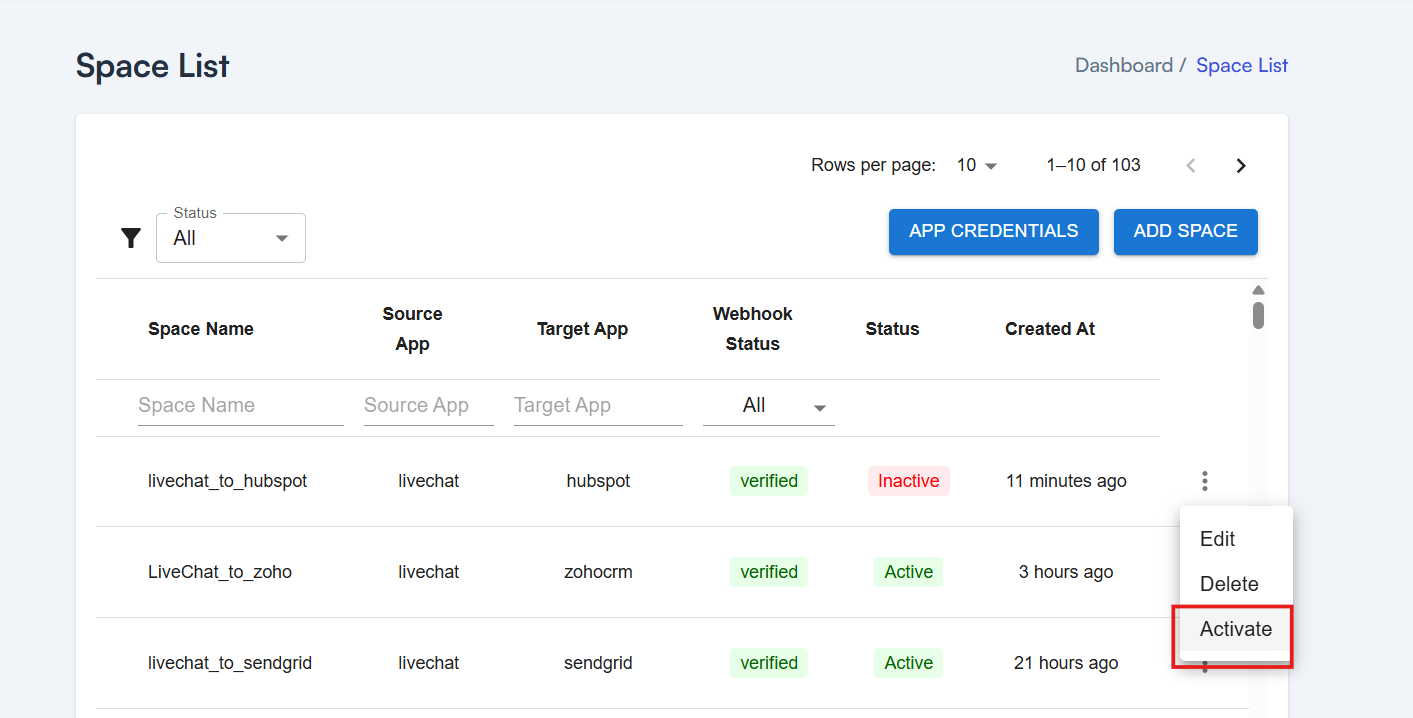
Step 16 From the Action Column, click to Activate Your Space
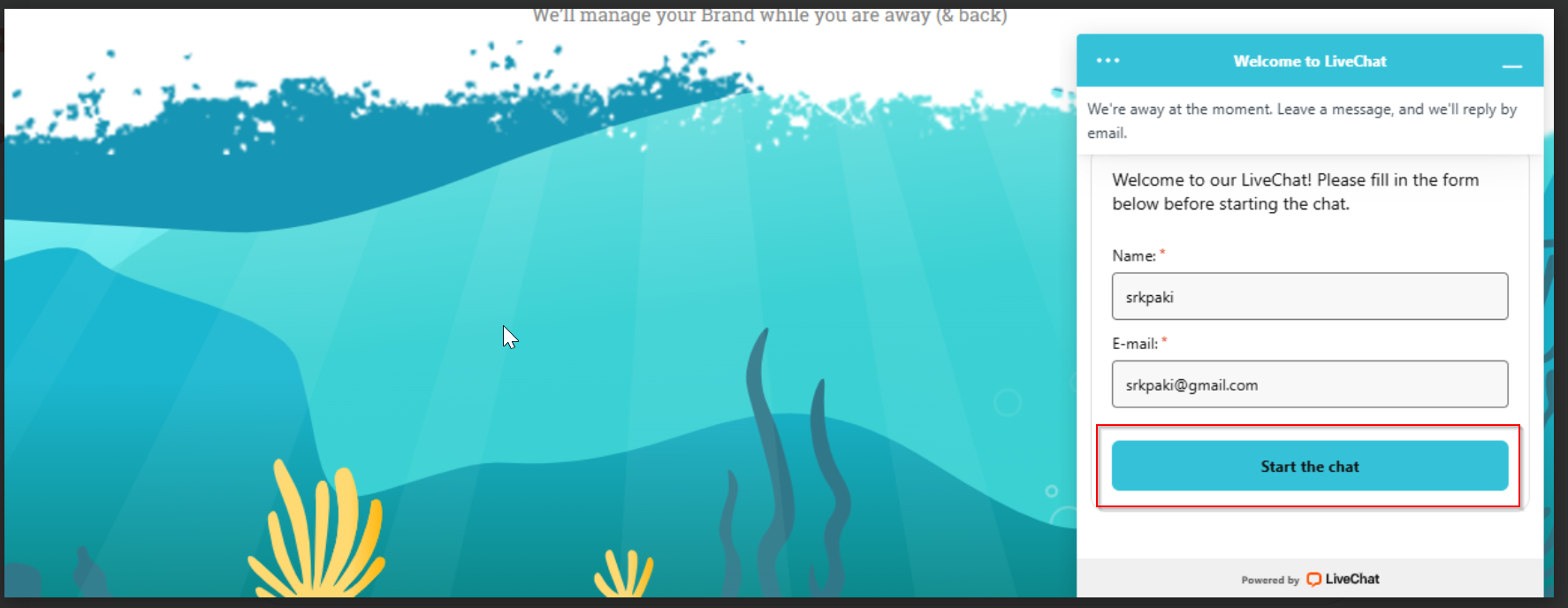
Step 17 Start another Demo Chat Session using LiveChat
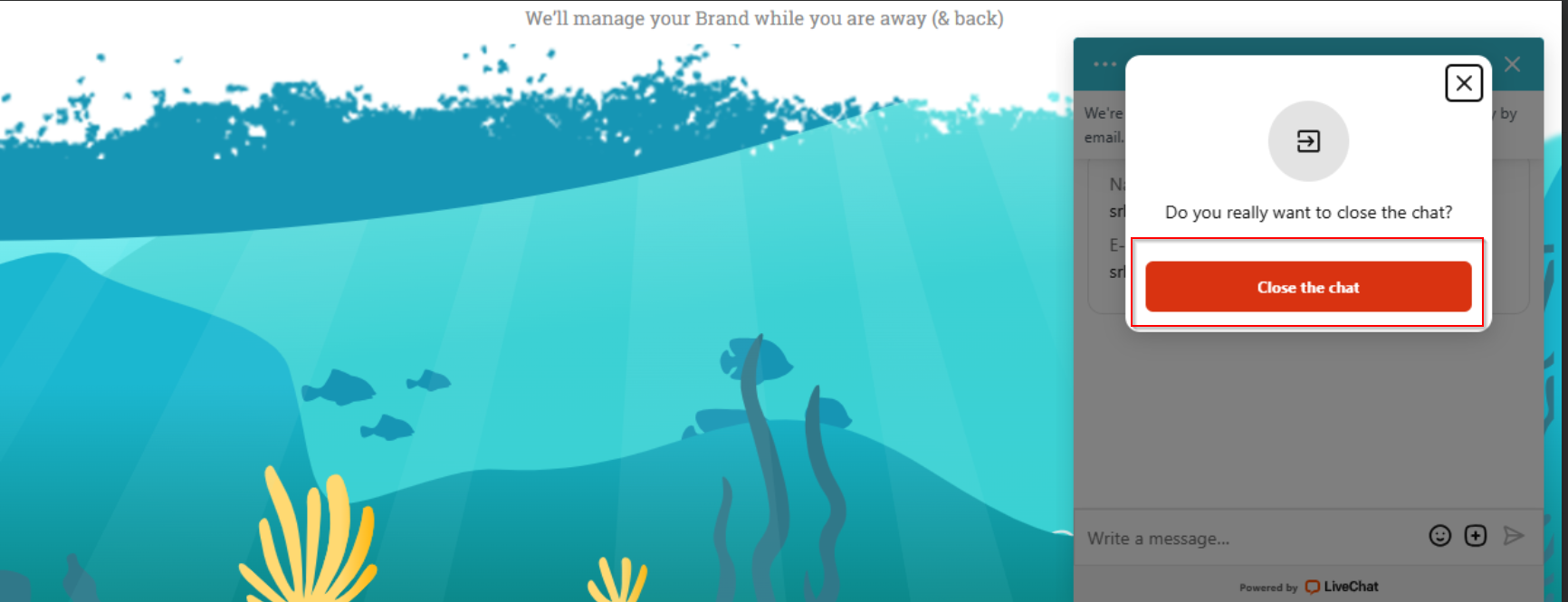
Step 18 End the Chat Session
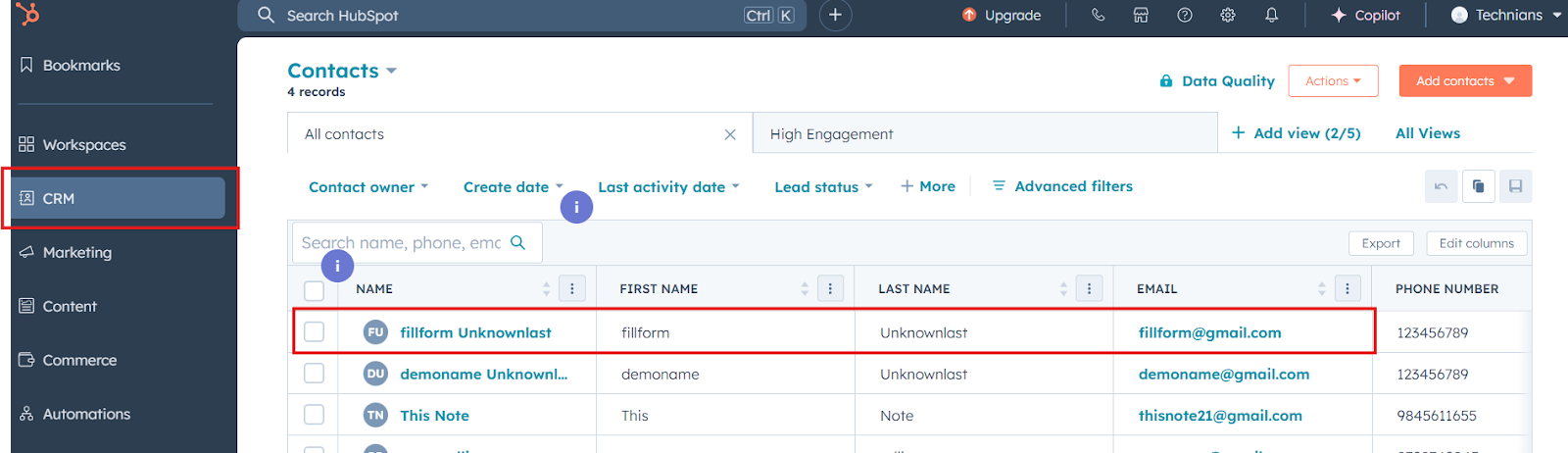
Step 19 Log in to your HubSpot account → Go to the CRM module → All Contacts List
  • You should see the new contact or record created from chart data
Gmail

New Attachment

Triggers when you receive a new attachment.

sheet

Only continue if...

Set up rules to specify when this Space can continue running.

Google Drive

Upload File

Triggers when any new file is added (inside of any folder).

Supported triggers and actions

Gmail

Triggers Attachment

Triggers when you receive a new attachment.

Gmail

New Label

Triggers when you add a new label.

Gmail

New Labeled Email

Triggers when you label an email.

Gmail

New Email

Triggers when a new email appears in the specified mailbox.

Gmail

Actions Attachment

Triggers when you receive a new attachment.

Gmail

New Label

Triggers when you add a new label.

Gmail

New Labeled Email

Triggers when you label an email.

Gmail

New Email

Triggers when a new email appears in the specified mailbox.

Gmail

New Attachment

Triggers when you receive a new attachment.

Gmail

New Label

Triggers when you add a new label.

Gmail

New Labeled Email

Triggers when you label an email.

Gmail

New Email

Triggers when a new email appears in the specified mailbox.

Your Integration Is Missing? Not for Long.

Tell us what you need — SyncSpace will sync it for you.
*No credit card Required