Steps to Verify a Webhook in LiveChat
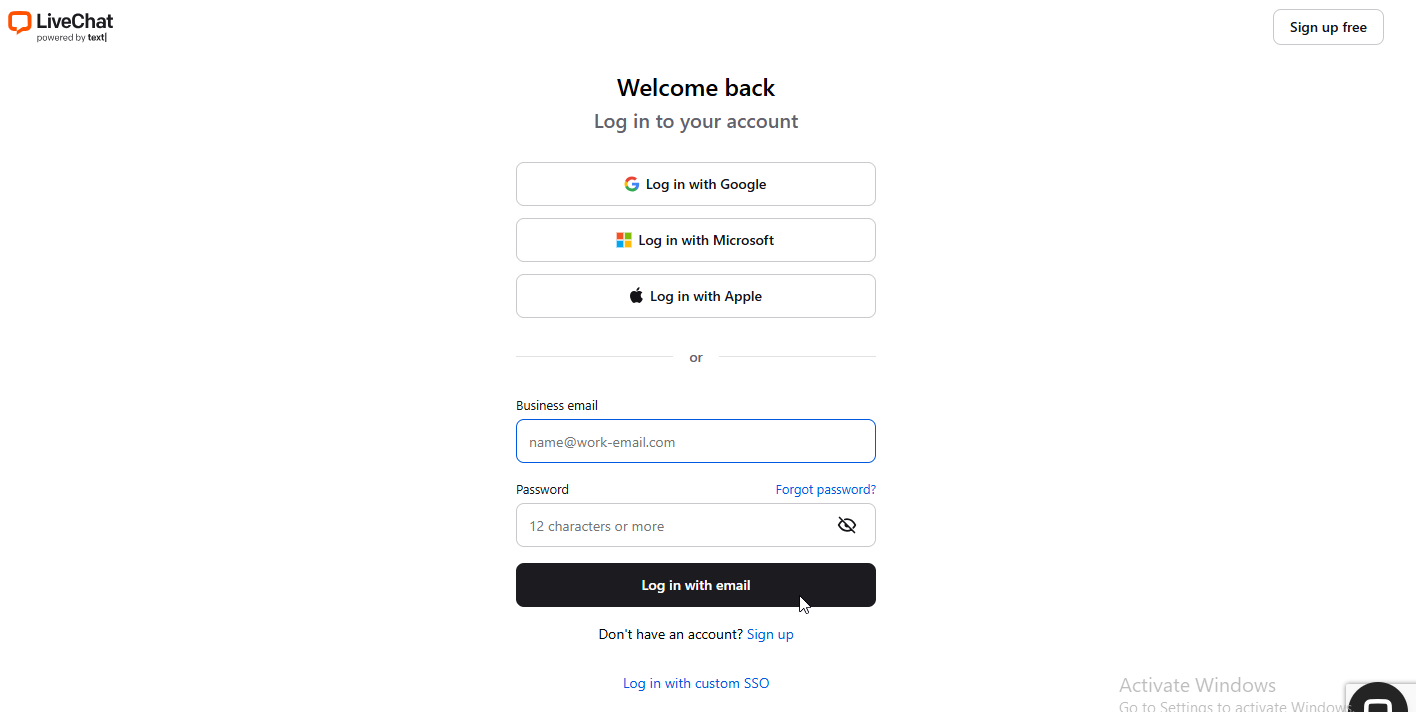
Step 1 Log in to your LiveChat account and go to the Dashboard.
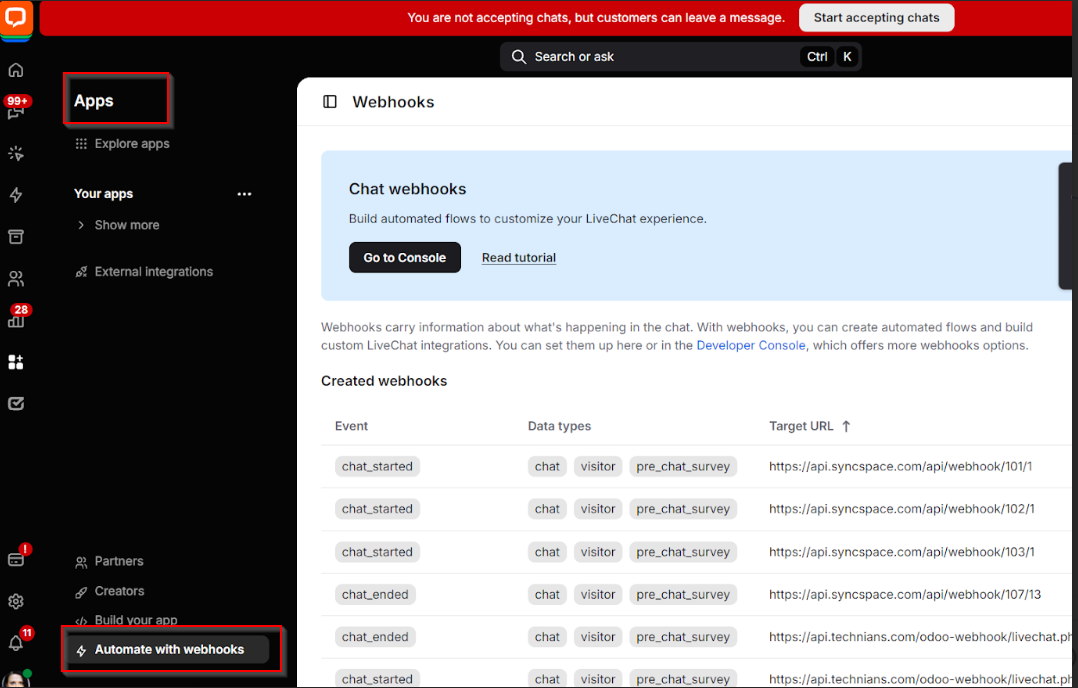
Step 2 On the left-side menu, scroll down and click on “Apps”.
At the bottom left under Apps, click on “Automate with Webhooks“
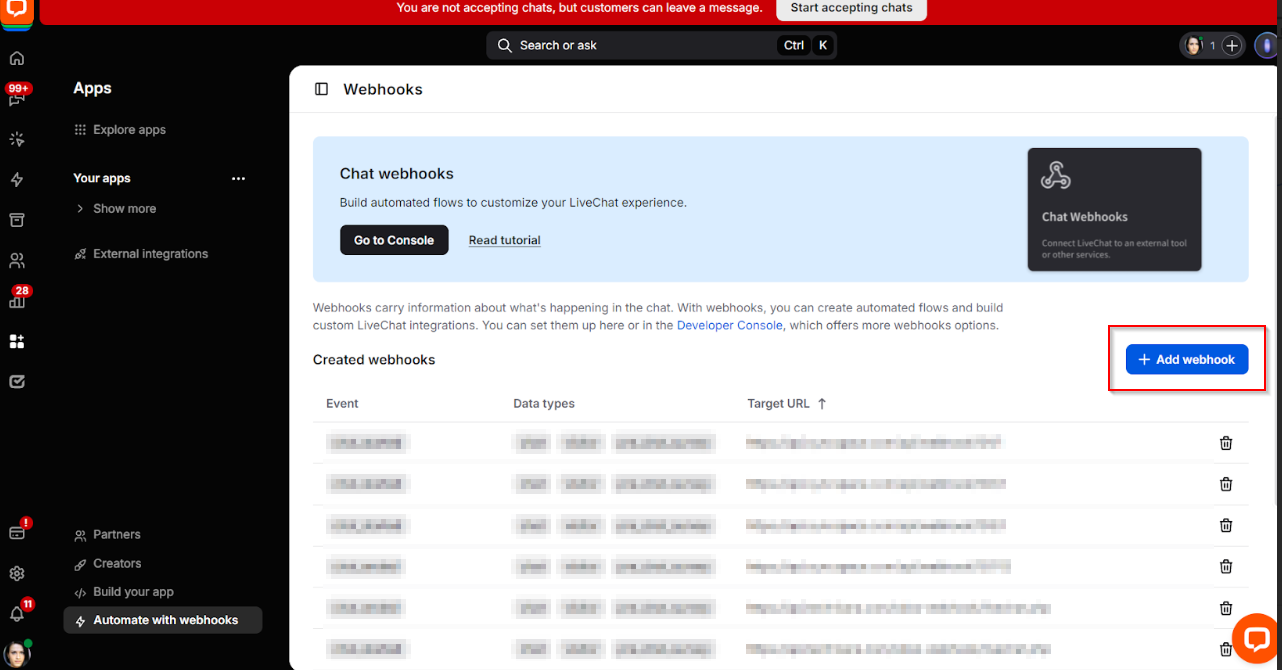
Step 3 Click the "Add Webhook" button to generate new Webhook
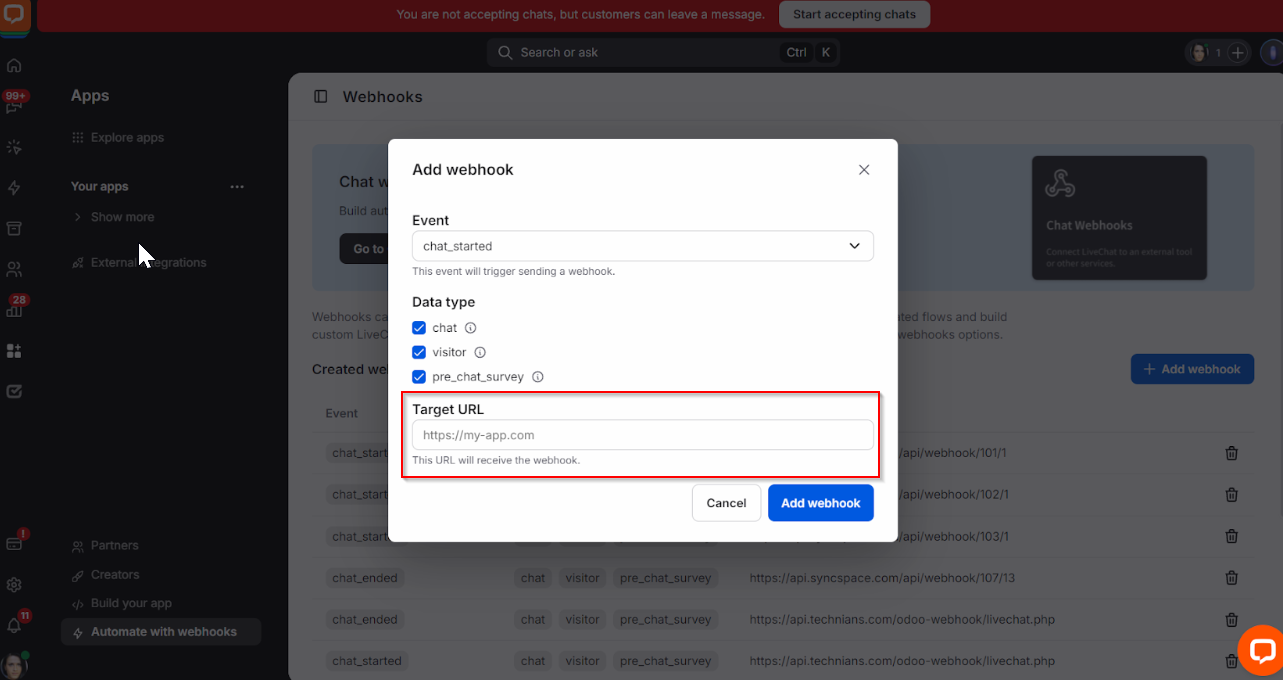
Step 4 A pop-up will appear paste your webhook URL in the "Target URL" field
- click the “Save” button.
- Your webhook will be verified (LiveChat will send a test request to confirm it).
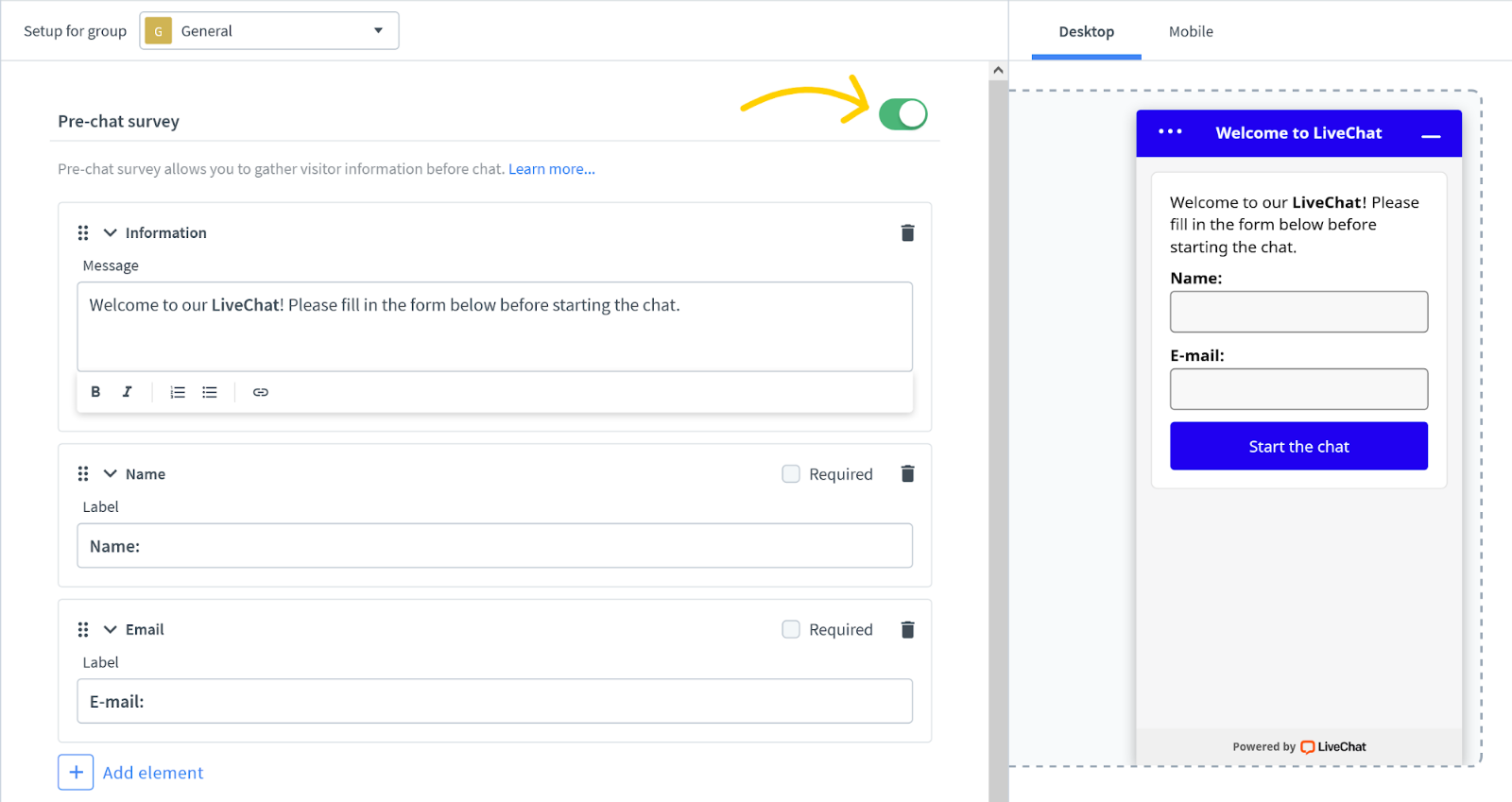
Step 5 From the dashboard's sidebar Menu, go to Settings and then click on Forms.
Under the Menu, select Pre-Chat to access the page.
Note: For capturing lead data, it is recommended to enable pre-chat form from the livechat dashboard as shown below
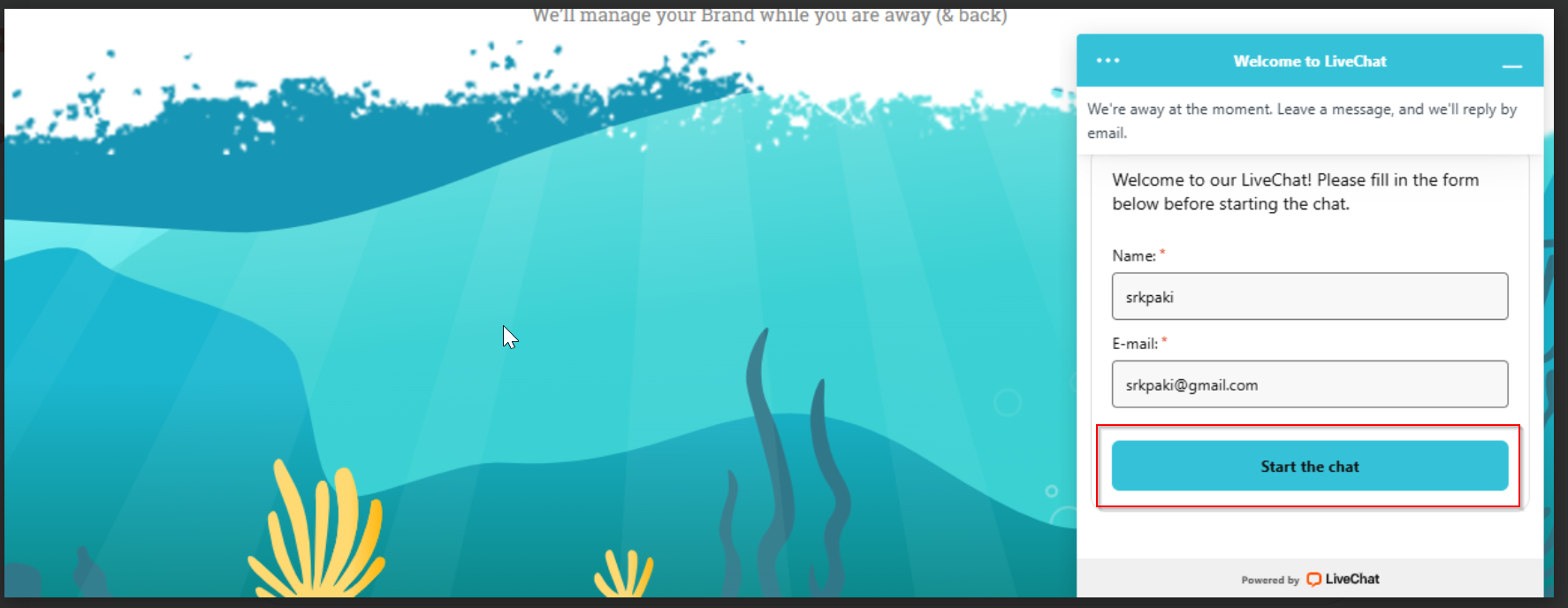
Step 6 Start a Demo Chat Session using LiveChat
Enter the visitor’s name and email.
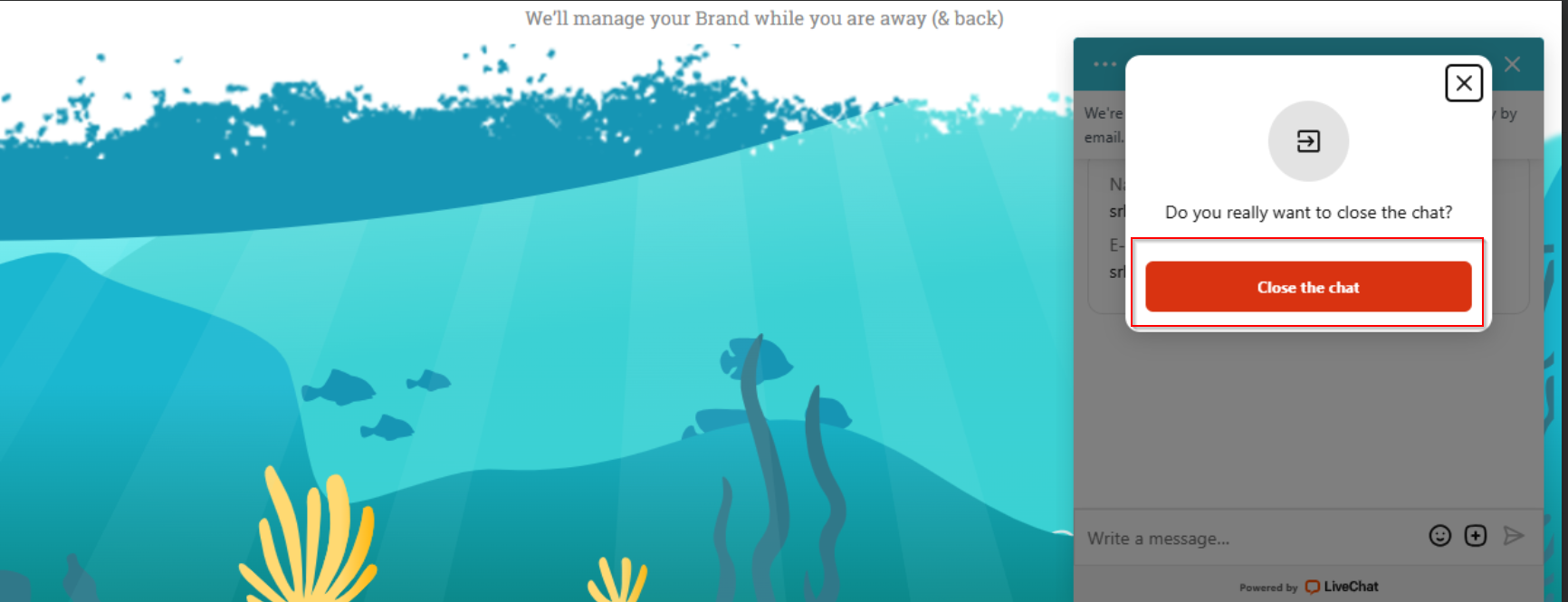
Step 7 End the chat session to trigger the webhook
Log in to your LiveChat account and go to the Dashboard.
On the left-side menu, scroll down and click on “Apps”.
Click the "Add Webhook" button to generate new Webhook
A pop-up will appear paste your webhook URL in the "Target URL" field
From the dashboard's sidebar Menu, go to Settings and then click on Forms.
Start a Demo Chat Session using LiveChat
End the chat session to trigger the webhook