Triggers Attachment
Triggers when you receive a new attachment.
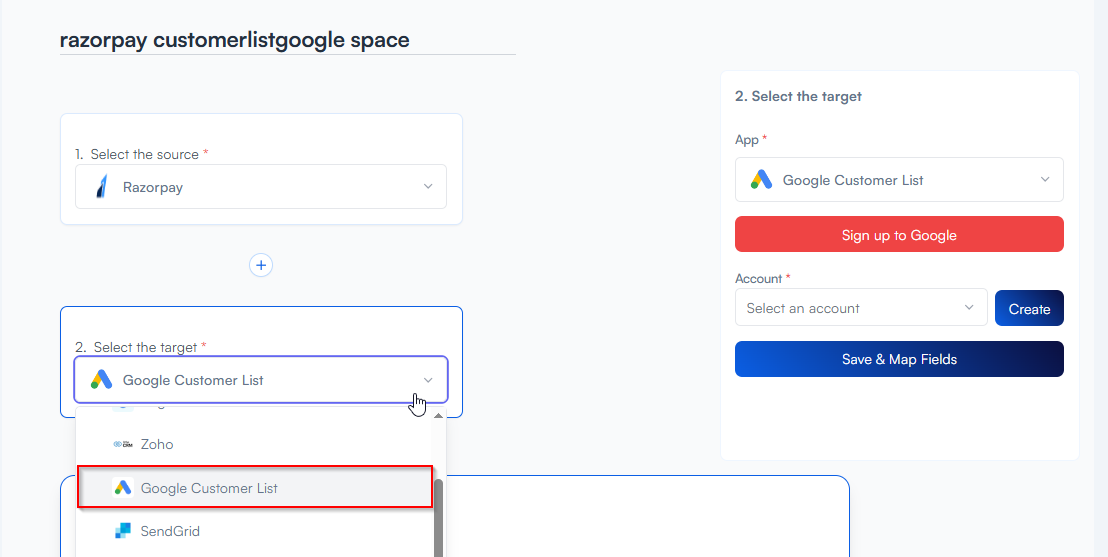
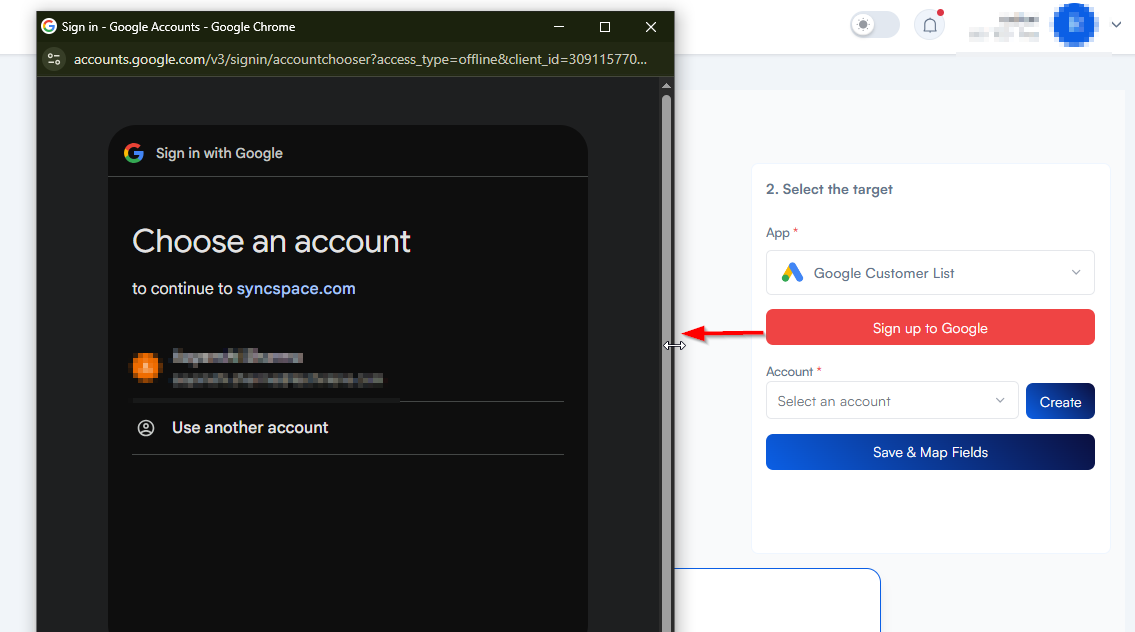
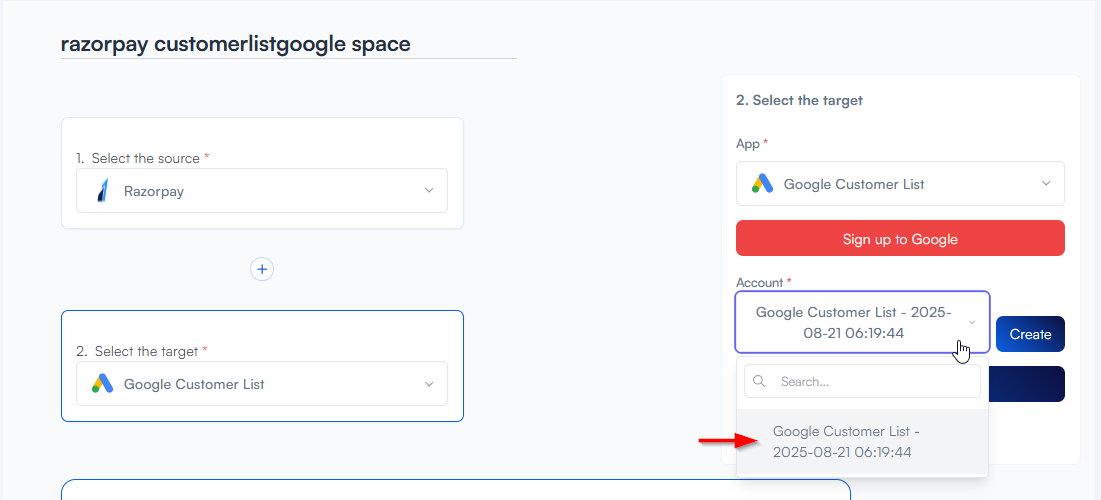
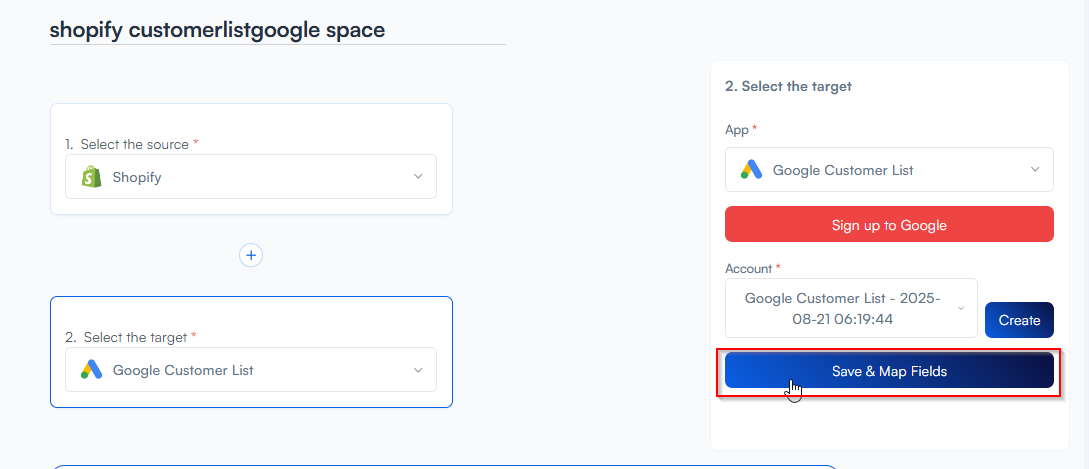
With Syncspace, you can automatically send new entries from your Razorpay directly to your Google Customer List account—no coding or technical skills required. Your form data flows automatically from one platform to the other.
Just follow the steps in this guide, and your Razorpay submissions will start showing up in Google Customer List automatically.
It’s fast, simple, and saves you time.
Prerequisites:
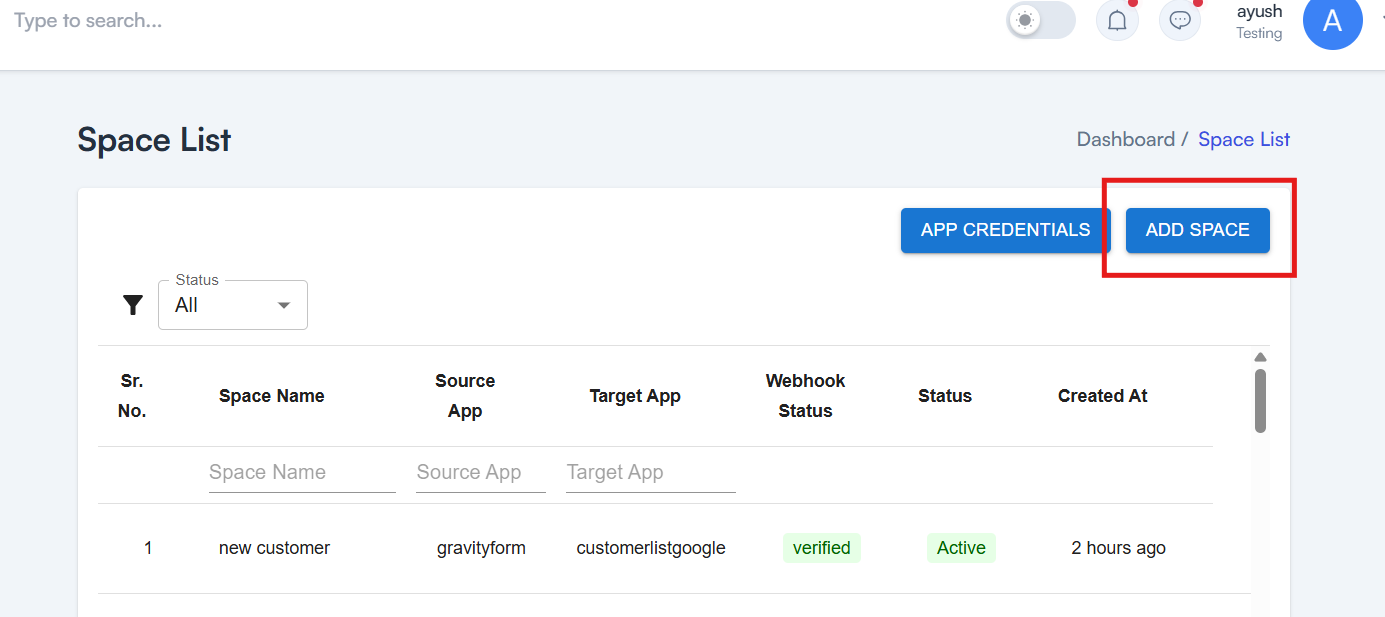
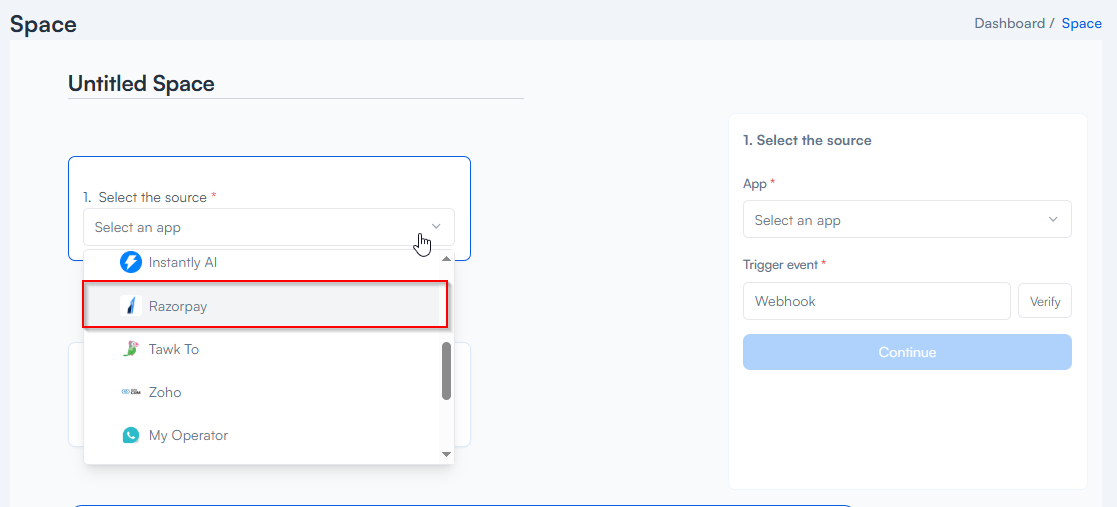
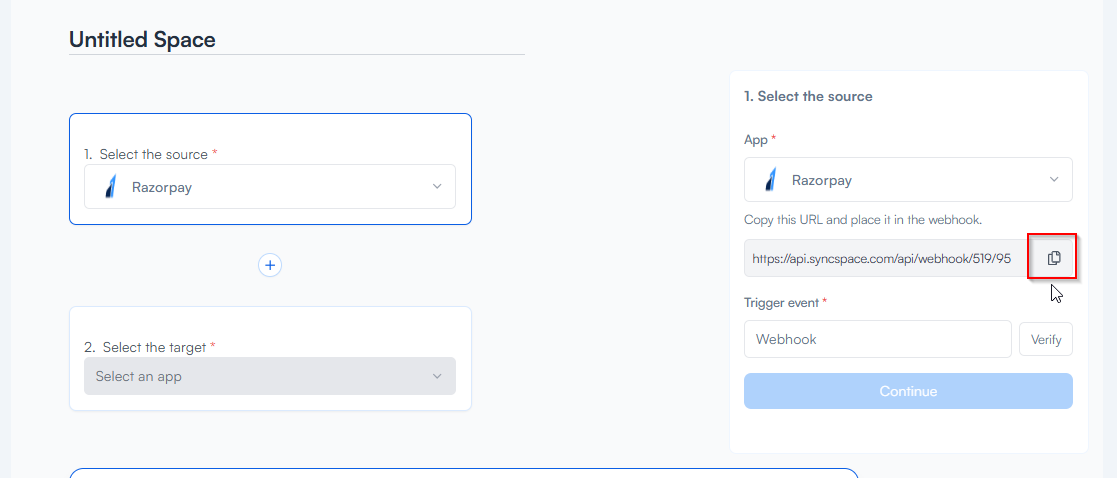
Need help creating credentials? Click here for the guide.
If you’ve already done that, continue below to create the space.
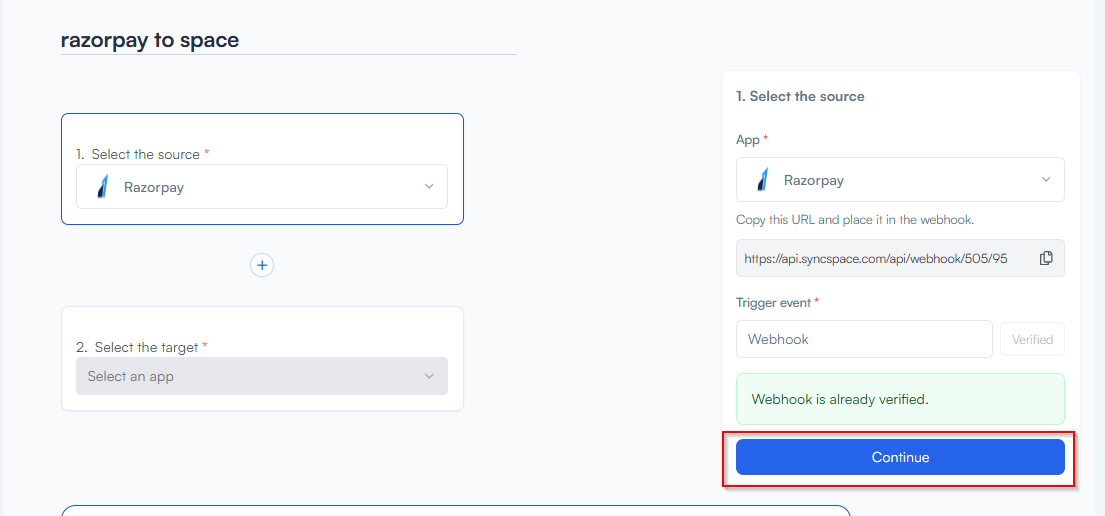
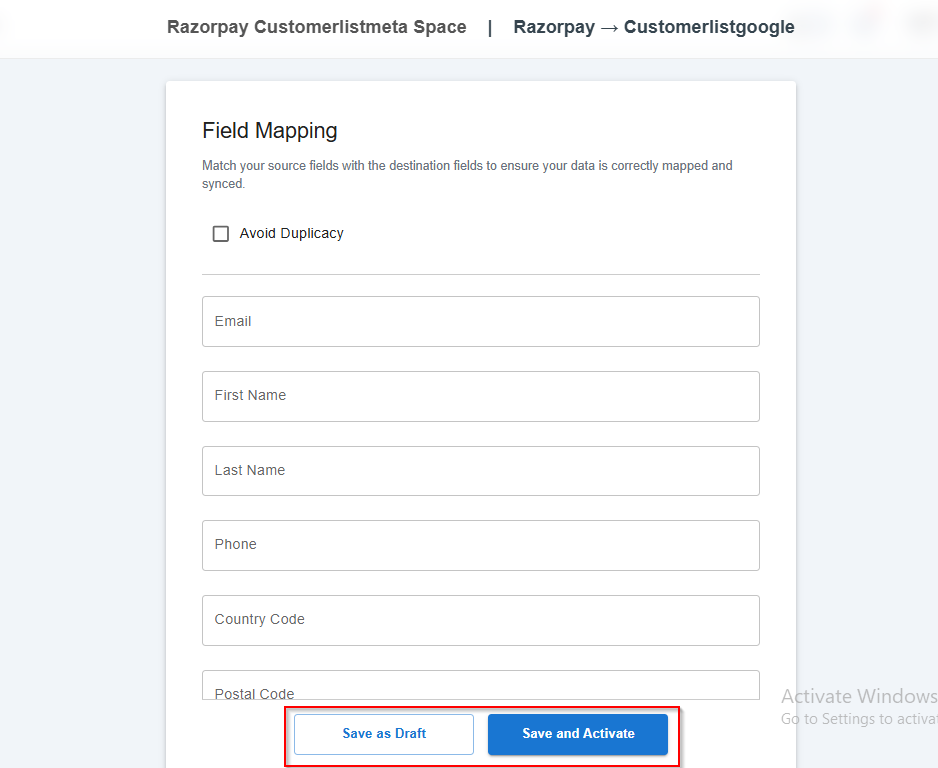
You will see two buttons: Save as Draft and Save and Activate.
Click Save and Activate, your space will be saved and activated automatically.
Click Save as Draft, This will save your space, but it won’t be active. You can activate it later by following the next steps.
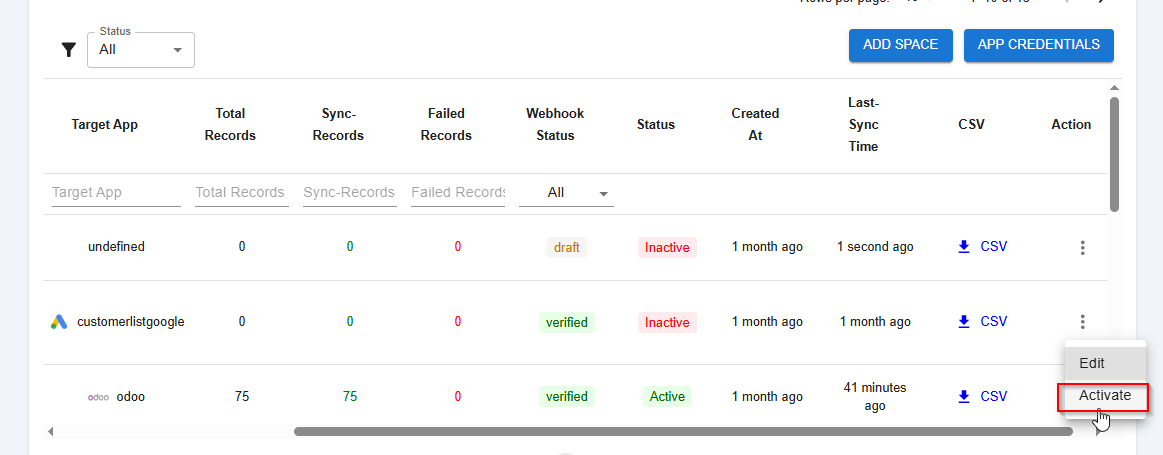

Triggers when you receive a new attachment.

Set up rules to specify when this Space can continue running.

Triggers when any new file is added (inside of any folder).




Triggers when you receive a new attachment.
Triggers when you add a new label.
Triggers when you label an email.
Triggers when a new email appears in the specified mailbox.
Triggers when you receive a new attachment.
Triggers when you add a new label.
Triggers when you label an email.
Triggers when a new email appears in the specified mailbox.
Triggers when you receive a new attachment.
Triggers when you add a new label.
Triggers when you label an email.
Triggers when a new email appears in the specified mailbox.